About meters

meters

The Mac system monitor you leave visible.

Activity Monitor and btop are built for investigation; keeping them open costs screen space and attention. Menu bar monitors squeeze into a crowded strip that the notch partly blocks.

meters keeps the few metrics you care about in a small floating panel that stays on screen while you work. It floats above other windows on every Space, never takes keyboard focus, and stays grey until a reading deserves your attention.

Apple SiliconmacOS 26 or laterNo network accessMIT License

Status, Oct 12, 2026: v1 is feature-complete and in daily use. Signed and notarized downloads are planned, with a notify-only update check.

The panel in the corner is a live replica. Drag it to an edge or corner and it snaps into line; right-click it, or click the gauge in the menu bar, for its menu. Scroll the page: it stays where you put it.
Modules

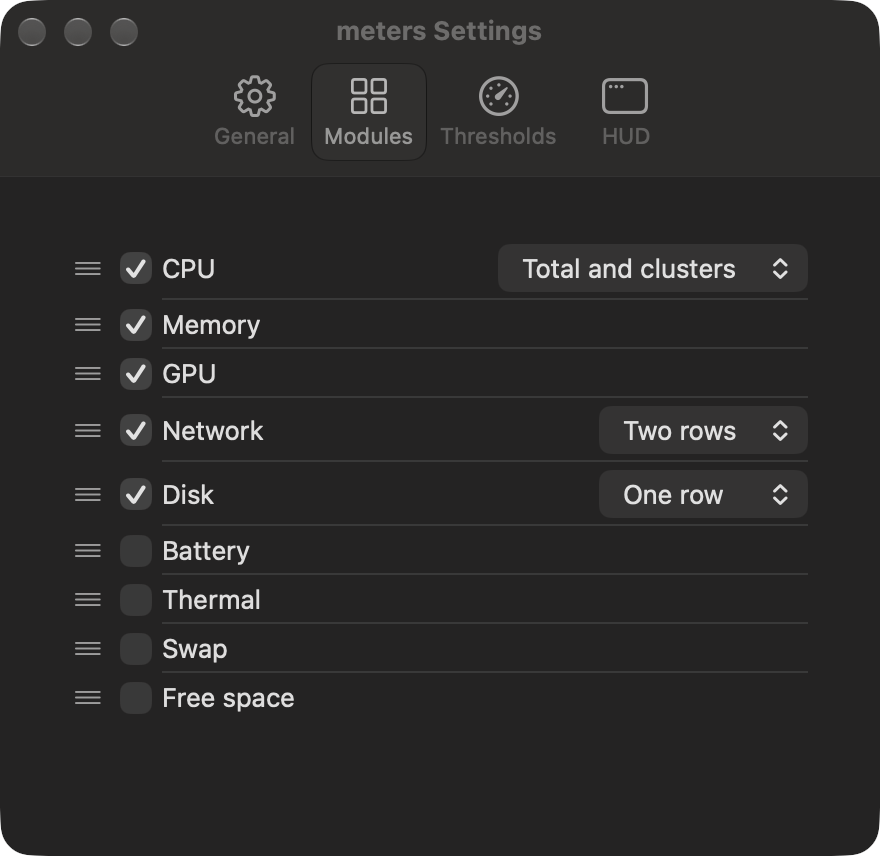
Nine modules, each optional and reorderable.

The default is three rows: CPU, memory, and network. The panel's width and height follow the modules and forms you pick.

  • CPUTotal, or each core cluster your Mac reports, such as Super and Performance on M5 chips
  • MemoryMeasured as Activity Monitor measures it; highlighting follows memory pressure
  • GPUDevice utilization
  • NetworkDownload and upload; the one-row form names Wi-Fi
  • DiskRead and write, naming the physical disk, such as disk0
  • BatteryCharge, with an arrow for the direction it is actually moving
  • ThermalOK, Warm, Hot, or Critical
  • SwapSwap in use
  • Free spaceThe startup disk's available space, as Finder counts it
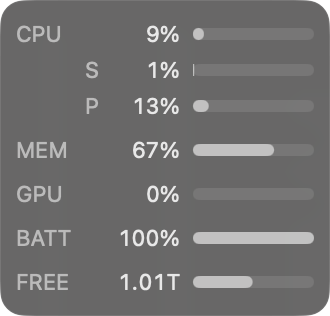
The panel with bar gauges for CPU and its clusters, memory, GPU, battery, and free space.
Bar gauges
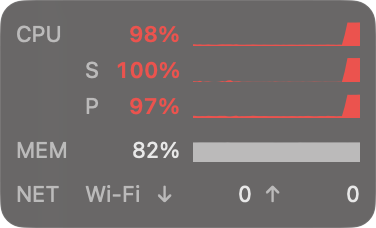
The panel after a few seconds of full CPU load: the CPU total and both cluster rows read 97 to 100% in red, while memory and network stay grey.
Sustained full load
The Settings window's Modules tab: a reorderable list of the nine modules with checkboxes, and form pickers for CPU, Network, and Disk.

Settings has four tabs: General, Modules, Thresholds, and HUD. Readings every 0.5, 1, 2, or 5 seconds.

Thresholds

Quiet until interesting.

A row turns amber or red, with its value in semibold, only after 3 consecutive readings past a threshold, and returns to grey after 3 back under. If meters looks quiet, the machine is probably fine.

ModuleAmberRed
CPU70% to 80%above 80%
Memorypressure warningpressure critical
GPU90% or morenone
Battery20% or below10% or below
ThermalHotCritical
Swapover 1 GBover 8 GB
Free spaceunder 10%under 5%

Privacy and performance

No network connections. Under 1% of one core.

meters opens no network connections and has no analytics or crash reporting. It needs no administrator password, privileged helper, or extra macOS permission; metric history stays in memory and is gone when you quit.

MeasuredFirst dataSelf CPUFootprint
Oct 17, 20260.376 s0.836%25.3 MB
Oct 12, 20260.375 s0.913%25.5 MB
Oct 2, 20260.394 s0.550%25.1 MB

M5 Max, 18 cores, macOS 27.2, averaged over five minutes. Targets: under 1 s, under 1% of one core, under 50 MB. Measurements on one Mac, not guarantees.